
From URDF File to ROS 2 Package: Organizing Your Robot Model for Success
Take your robot design to the next level by packaging your URDF in a ROS 2 workspace—making it ready for visualization, simulation, and sharing with the robotics community!

Prerequisites:
Before we dive into creating a URDF package, make sure you have the following in place:
- A Completed URDF File:
You should have a valid URDF file describing your robot. If you haven't created one yet, check out my previous article on Creating a URDF with Autodesk Fusion.
- ROS2 Installed:
This guide assumes you're working on ROS2 (any recent distribution like Kilted, Jazzy, Iron or Humble). If you haven't installed ROS2 yet, follow my previous article on ROS2 Installation.
- Text Editor:
Any text editor should do (VS Code, gedit, nano, vim...etc) for editing your URDF and launch files.
Step 0: Creating a ROS2 Workspace
SKIP if you already have one
Create a New Workspace Directory
Open a terminal and create a new workspace directory (commonly named ros2_ws)
mkdir -p ~/ros2_ws/srcNavigate to the workspace root
cd ~/ros2_wsBuild the (currently empty) workspace:
colcon buildSource the Workspace
So ROS2 can find your packages:
cd ~/ros2_ws
source install/setup.bash
Step 1: Create a New Description Package
I'll be using
ament_python for the build_type and
MIT for the License
Navigate to your Workspace's src directory:
cd ~/ros2_ws/srcCreate a New Package
I'm Using the CanadaArm2 from the previous Tutorial, so I'll call it the canadarm2_description
ros2 pkg create --build-type ament_python --license MIT canadarm2_descriptioncanadarm2_description/
├── package.xml
├── setup.cfg
├── setup.py
├── resource/
│ └── my_robot_description
└── canadarm2_description/
└── __init__.pyStep 2: Add Your meshes and urdf Folders to the Package
To keep the robot model organized and portable, place all the model assets - such as mesh files and URDF files - inside the description package. This makes it easy to share and reuse the robot accross different projects.
Create the Folders:
Navigate to the package directory and create the urdf and meshes folders:
cd ~/ros2_ws/src/canadarm2_description
mkdir urdf meshes
Copy Your Files
Copy URDF Files into urdf folder:
cp /path/to/your/model.urdf urdf/Copy All mesh files into the meshes folder:
Most Commonly its .stl, .dae, .obj or .ply files.
cp /path/to/your/meshes/* meshes/Now Your Package should like:
canadarm2_description/
├── meshes/
│   ├── link1.stl
│   ├── link2.stl
│   └── ...
├── urdf/
│   └── model.urdf
├── package.xml
├── setup.cfg
├── setup.py
├── resource/
│   └── canadarm2_description
└── canadarm2_description/
    └── __init__.py
Step 3: Edit package.xml and setup.py
To ensure your package is properly recognised by ROS2 and all your assets are installed, you need to update package.xml and setup.py
A bit more of detail on why we do this crucial step:
- Seamless Dependency Installation with rosdep:
When you specify all required dependencies in your package.xml, new users can simply run:
rosdep install --from-paths src -y --ignore-srcto automatically install every system and ROS package dependency needed to build and run your package—even on a fresh ROS install. This saves time, reduces errors, and ensures a smoother onboarding experience for collaborators and users.
- Cross Platform Compatibility:
rosdep translates dependency keys into the correct package names for different operating systems, making your package more portable and easier to use across Ubuntu, Debian, Fedora, and other supported platforms
- Reliable Builds and Reproducibility:
A complete and correct package.xml ensures that all build tools and automation systems (like CI/CD pipelines) can resolve dependencies and build your package without manual intervention.
- Easier Maintenance and Collaboration:
Clear dependency management helps collaborators understand what your package needs, reduces troubleshooting time, and keeps your project maintainable as it grows.
Edit package.xml :
Open package.xml in VS Code and update the following:
- Description , Maintainer and License
<package format="3">
  <name>canadarm2_description</name>
  <version>0.0.1</version>
  <description>CanadaArm2 URDF Description package</description>
  <maintainer email="[email protected]">kautilya</maintainer>
  <license>MIT</license>
- name: The unique name of your package.
- version: Current version of your package.
- description: Brief summary of what the package provides.
- maintainer: Who maintains the package (with email).
- license: The license under which the package is released (MIT is permissive and open-source friendly).
- Dependencies
<depend>robot_state_publisher</depend>
  <depend>joint_state_publisher_gui</depend>
  <depend>gazebo_ros</depend>
  <depend>rviz2</depend>
<depend>rclpy</depend>- robot_state_publisher: Publishes the state of the robot as described by your URDF.
- joint_state_publisher_gui: GUI for interactively moving joints.
- gazebo_ros: Required if you plan to simulate your robot in Gazebo.
- rviz2: For visualizing the robot in RViz.
- rclpy: Python client library for ROS 2 (needed if you write Python nodes or launch files).
gazebo_ros is a dependency which has been deprecated on Jazzy and Above, So Humble is the last ROS2 Distribution it will work withMy package.xml looks like:
<?xml version="1.0"?>
<?xml-model href="http://download.ros.org/schema/package_format3.xsd" schematypens="http://www.w3.org/2001/XMLSchema"?>
<package format="3">
  <name>canadarm2_description</name>
  <version>0.0.1</version>
  <description>CanadaArm2 URDF Description package</description>
  <maintainer email="[email protected]">kautilya</maintainer>
  <license>MIT</license>

  <depend>robot_state_publisher</depend>
  <depend>joint_state_publisher_gui</depend>
  <depend>gazebo_ros</depend>
  <depend>rviz2</depend>
  <depend>rclpy</depend>

  <test_depend>ament_copyright</test_depend>
  <test_depend>ament_flake8</test_depend>
  <test_depend>ament_pep257</test_depend>
  <test_depend>python3-pytest</test_depend>

  <export>
    <build_type>ament_python</build_type>
  </export>
</package>
Edit setup.py :
Open package.xml in VS Code and update the following:
- Include All Resource Files:
def package_files(directory):
    paths=[]
    for (path, directories, filenames) in os.walk(directory):
        for filename in filenames:
            paths.append(os.path.join(path, filename))
    return paths

urdf_files = package_files('urdf')
mesh_files = package_files('meshes')
launch_files = package_files('launch')
rviz_files = package_files('rviz') if os.path.exists('rviz') else []- Defines a helper function
package_filesto gather all files (recursively) under a given directory. - Collects all files from
urdf,meshes,launch, and (optionally)rvizfolders. - Ensures that every asset (URDFs, meshes, launch files, RViz configs) is included in the package installation.
Guarantees that all model and configuration files are installed and available to users, no matter where the package is built or installed.
- Declaring Data Files for Installation :
data_files = [
    ('share/ament_index/resource_index/packages', ['resource/' + package_name]),
    ('share/' + package_name, ['package.xml']),
]

# Add urdf, meshes, launch, and rviz files to data_files
if urdf_files:
    data_files.append(('share/' + package_name + '/urdf', urdf_files))
if mesh_files:
    data_files.append(('share/' + package_name + '/meshes', mesh_files))
if launch_files:
    data_files.append(('share/' + package_name + '/launch', launch_files))
if rviz_files:
data_files.append(('share/' + package_name + '/rviz', rviz_files))- Ensures that the ROS 2 package index and
package.xmlare installed in the correct locations. - Dynamically adds all URDF, mesh, launch, and RViz files to the installation, if they exist.
ROS 2 tools (like ros2 launch and ros2 pkg) expect files in these standard locations.
Makes your package portable and ensures all resources are available after installation.
- The
setup()Function :
setup(
    name=package_name,
    version='0.0.1',
    packages=find_packages(exclude=['test']),
    data_files=data_files,
    install_requires=['setuptools'],
    zip_safe=True,
    maintainer='kautilya',
    maintainer_email='[email protected]',
    description='CanadaArm2 URDF Description package',
    license='MIT',
    tests_require=['pytest'],
    entry_points={
        'console_scripts': [
        ],
    },
)
- Standard Python package metadata: name, version, description, maintainer, license.
find_packages(exclude=['test'])finds any Python modules (not typically used in pure description packages, but keeps the structure flexible).data_filesensures all your non-code resources (URDFs, meshes, etc.) are installed.install_requiresandtests_requirespecify Python dependencies.entry_pointsis left empty, as this package doesn’t provide Python executables/scripts.
Makes your package installable via colcon build and ensures all assets are available at runtime.
Follows ROS 2 conventions for Python-based packages, which is best practice for description packages.
My setup.py looks like:
from setuptools import find_packages, setup
import os

package_name = 'canadarm2_description'

def package_files(directory):
    paths=[]
    for (path, directories, filenames) in os.walk(directory):
        for filename in filenames:
            paths.append(os.path.join(path, filename))
    return paths

urdf_files = package_files('urdf')
mesh_files = package_files('meshes')
launch_files = package_files('launch')
rviz_files = package_files('rviz') if os.path.exists('rviz') else []

data_files = [
    ('share/ament_index/resource_index/packages', ['resource/' + package_name]),
    ('share/' + package_name, ['package.xml']),
]

# Add urdf, meshes, launch, and rviz files to data_files
if urdf_files:
    data_files.append(('share/' + package_name + '/urdf', urdf_files))
if mesh_files:
    data_files.append(('share/' + package_name + '/meshes', mesh_files))
if launch_files:
    data_files.append(('share/' + package_name + '/launch', launch_files))
if rviz_files:
    data_files.append(('share/' + package_name + '/rviz', rviz_files))


setup(
    name=package_name,
    version='0.0.1',
    packages=find_packages(exclude=['test']),
    data_files=data_files,
    install_requires=['setuptools'],
    zip_safe=True,
    maintainer='kautilya',
    maintainer_email='[email protected]',
    description='CanadaArm2 URDF Description package',
    license='MIT',
    tests_require=['pytest'],
    entry_points={
        'console_scripts': [
        ],
    },
)
Step 4: Create Launch Files for Rviz and Gazebo
Create Directories for launch and rviz :
Navigate to your package directory and create the launch and rviz folders:
cd ~/ros2_ws/src/canadarm2_description
mkdir -p launch rviz
Create Rviz Launch File:
Inside the launch folder, create a file named display.launch.py:
cd launch
touch display.launch.py
Imports and Setup:
from launch import LaunchDescription
from launch.actions import DeclareLaunchArgument
from launch.substitutions import LaunchConfiguration
from launch_ros.actions import Node
import os
from ament_index_python.packages import get_package_share_directory
- Imports: Brings in ROS 2 launch system classes, OS utilities, and ament index tools for finding package resources.
File and Path Setup:
package_name = 'canadarm2_description'
urdf_file = 'CanadaArm2-PLY-ROS2.urdf'
rviz_config_file = 'canadarm2.rviz'

pkg_share = get_package_share_directory(package_name)
urdf_path = os.path.join(pkg_share,'urdf',urdf_file)
rviz_path = os.path.join(pkg_share,'rviz',rviz_config_file)

with open(urdf_path, 'r') as infp:
robot_description_content = infp.read()- package_name: The ROS 2 package containing your robot description.
- urdf_file: The filename of your robot’s URDF.
- rviz_config_file: The filename of your RViz configuration.
- pkg_share: Finds the installed location of your package.
- urdf_path/rviz_path: Full paths to your URDF and RViz config files.
- robot_description_content: Reads the entire URDF file into a string for use by the robot state publisher.
LaunchDescription and Nodes
return LaunchDescription([
    # Static transform publisher: map -> base_link
    Node(
        package='tf2_ros',
        executable='static_transform_publisher',
        name='static_tf_pub_map_to_base',
        arguments=['0', '0', '0', '0', '0', '0', 'map', 'base_link']
    ),
    # Joint State Publisher GUI
    Node(
        package='joint_state_publisher_gui',
        executable='joint_state_publisher_gui',
        name='joint_state_publisher_gui'
    ),
    # Robot State Publisher
    Node(
        package='robot_state_publisher',
        executable='robot_state_publisher',
        name='robot_state_publisher',
        parameters=[{'robot_description': robot_description_content}]
    ),
    # RViz with RobotModel display
    Node(
        package='rviz2',
        executable='rviz2',
        name='rviz2',
        arguments=['-d', rviz_path],
        output='screen'
    )
])
Node 1: Static Transform Publisher
Node(
    package='tf2_ros',
    executable='static_transform_publisher',
    name='static_tf_pub_map_to_base',
    arguments=['0', '0', '0', '0', '0', '0', 'map', 'base_link']
)- Publishes a fixed transform from the
mapframe to thebase_linkframe. - The arguments specify translation (0,0,0) and rotation (0,0,0), so the frames are coincident.
- This is useful for establishing a root frame for your robot in the TF tree.
Node 2: Joint State Publisher GUI
Node(
    package='joint_state_publisher_gui',
    executable='joint_state_publisher_gui',
    name='joint_state_publisher_gui'
)- Launches a GUI to interactively move the robot’s joints.
- Essential for visualizing kinematic chains and testing joint limits in RViz.
Node 3: Robot State Publisher
Node(
    package='robot_state_publisher',
    executable='robot_state_publisher',
    name='robot_state_publisher',
    parameters=[{'robot_description': robot_description_content}]
)- Publishes the robot’s kinematic transforms based on the URDF and joint states.
- Makes the robot model appear correctly in RViz and other ROS tools.
Node 4: RViz
Node(
    package='rviz2',
    executable='rviz2',
    name='rviz2',
    arguments=['-d', rviz_path],
    output='screen'
)- Starts RViz 2 with your specified configuration file.
- The config file can pre-load displays (like RobotModel, TF, etc.) for convenience.
display.launch.py
The full launch file looks like:
from launch import LaunchDescription
from launch.actions import DeclareLaunchArgument
from launch.substitutions import LaunchConfiguration
from launch_ros.actions import Node
import os

from ament_index_python.packages import get_package_share_directory

def generate_launch_description():
    package_name = 'canadarm2_description'
    urdf_file = 'CanadaArm2-PLY-ROS2.urdf'
    rviz_config_file = 'canadarm2.rviz'

    pkg_share = get_package_share_directory(package_name)
    urdf_path = os.path.join(pkg_share,'urdf',urdf_file)
    rviz_path = os.path.join(pkg_share,'rviz',rviz_config_file)

    with open(urdf_path, 'r') as infp:
        robot_description_content = infp.read()

    return LaunchDescription([
        # Static transform publisher: map -> base_link
        Node(
            package='tf2_ros',
            executable='static_transform_publisher',
            name='static_tf_pub_map_to_base',
            arguments=['0', '0', '0', '0', '0', '0', 'map', 'base_link']
        ),
        # Joint State Publisher GUI
        Node(
            package='joint_state_publisher_gui',
            executable='joint_state_publisher_gui',
            name='joint_state_publisher_gui'
        ),
        # Robot State Publisher
        Node(
            package='robot_state_publisher',
            executable='robot_state_publisher',
            name='robot_state_publisher',
            parameters=[{'robot_description': robot_description_content}]
        ),
        # RViz with RobotModel display
        Node(
            package='rviz2',
            executable='rviz2',
            name='rviz2',
            arguments=['-d', rviz_path],
            output='screen'
        )
    ])
Create Gazebo Launch File:
Imports and Setup
import os
from launch import LaunchDescription
from launch.actions import IncludeLaunchDescription, SetEnvironmentVariable
from launch.launch_description_sources import PythonLaunchDescriptionSource
from launch_ros.actions import Node
from ament_index_python.packages import get_package_share_directory
- Imports: Brings in all necessary Python and ROS 2 launch libraries for including other launch files, setting environment variables, and running ROS nodes.
File and Path Setup
pkg_share = get_package_share_directory('canadarm2_description')
urdf_file = os.path.join(pkg_share, 'urdf', 'CanadaArm2-OBJ-ROS2.urdf')
gazebo_launch_file = os.path.join(get_package_share_directory('gazebo_ros'), 'launch', 'gazebo.launch.py')
gazebo_model_path = os.path.dirname(pkg_share)
# Read the URDF file directly
with open(urdf_file, 'r') as infp:
    robot_description_content = infp.read()
- pkg_share: Finds the installed location of your description package.
- urdf_file: Full path to your robot’s URDF file.
- gazebo_launch_file: Path to the standard Gazebo launch file provided by
gazebo_ros. - gazebo_model_path: The parent directory of your package, set as the
GAZEBO_MODEL_PATHso Gazebo can find your custom meshes. - robot_description_content: Reads the URDF file contents for use by the
robot_state_publisher.
LaunchDescription and Actions
return LaunchDescription([
    # Set GAZEBO_MODEL_PATH so Gazebo can find your meshes
    SetEnvironmentVariable(
        name='GAZEBO_MODEL_PATH',
        value=gazebo_model_path
    ),

    # Start Gazebo
    IncludeLaunchDescription(
        PythonLaunchDescriptionSource(gazebo_launch_file),
        launch_arguments={'verbose': 'true'}.items(),
    ),

    # Start robot_state_publisher with the URDF
    Node(
        package='robot_state_publisher',
        executable='robot_state_publisher',
        name='robot_state_publisher',
        output='screen',
        parameters=[{'robot_description': robot_description_content, 'use_sim_time': True}],
    ),

    # Spawn the robot in Gazebo
    Node(
        package='gazebo_ros',
        executable='spawn_entity.py',
        arguments=['-topic', 'robot_description', '-entity', 'canadarm2'],
        output='screen',
    ),
])
SetEnvironmentVariable:GAZEBO_MODEL_PATH
SetEnvironmentVariable(
    name='GAZEBO_MODEL_PATH',
    value=gazebo_model_path
),- Purpose: Tells Gazebo where to look for model files (e.g., meshes referenced by your URDF).
- Why: Ensures all custom meshes used by your robot are found and loaded correctly in the simulation.
IncludeLaunchDescription: Start Gazebo
IncludeLaunchDescription(
    PythonLaunchDescriptionSource(gazebo_launch_file),
    launch_arguments={'verbose': 'true'}.items(),
),
- Purpose: Starts the Gazebo simulator using its standard launch file.
- Why: Brings up the Gazebo GUI and simulation environment, ready for your robot to be spawned.
- Extra: The
verboseargument enables more detailed logging from Gazebo.
Node: robot_state_publisher
Node(
    package='robot_state_publisher',
    executable='robot_state_publisher',
    name='robot_state_publisher',
    output='screen',
    parameters=[{'robot_description': robot_description_content, 'use_sim_time': True}],
),
- Purpose: Publishes the robot’s TF transforms using the URDF.
- Why: Keeps the simulation’s TF tree updated, so all ROS tools (including Gazebo plugins) know the robot’s kinematic structure.
- Note:
use_sim_time: Truemakes the node use Gazebo’s simulated clock.
Node: spawn_entity.py
Node(
    package='gazebo_ros',
    executable='spawn_entity.py',
    arguments=['-topic', 'robot_description', '-entity', 'canadarm2'],
    output='screen',
),- Purpose: Spawns your robot into the Gazebo world.
- How: Reads the robot’s URDF from the
robot_descriptiontopic (published byrobot_state_publisher) and creates the robot in the simulation. - Entity Name: The spawned robot will be named
canadarm2in Gazebo.
gazebo.launch.py
The full launch file looks like:
import os
from launch import LaunchDescription
from launch.actions import IncludeLaunchDescription, SetEnvironmentVariable
from launch.launch_description_sources import PythonLaunchDescriptionSource
from launch_ros.actions import Node
from ament_index_python.packages import get_package_share_directory

def generate_launch_description():
    pkg_share = get_package_share_directory('canadarm2_description')
    urdf_file = os.path.join(pkg_share, 'urdf', 'CanadaArm2-OBJ-ROS2.urdf')
    gazebo_launch_file = os.path.join(get_package_share_directory('gazebo_ros'), 'launch', 'gazebo.launch.py')
    gazebo_model_path = os.path.dirname(pkg_share)
    # Read the URDF file directly
    with open(urdf_file, 'r') as infp:
        robot_description_content = infp.read()

    return LaunchDescription([
        # Set GAZEBO_MODEL_PATH so Gazebo can find your meshes
        SetEnvironmentVariable(
            name='GAZEBO_MODEL_PATH',
            value=gazebo_model_path
        ),

        # Start Gazebo
        IncludeLaunchDescription(
            PythonLaunchDescriptionSource(gazebo_launch_file),
            launch_arguments={'verbose': 'true'}.items(),
        ),

        # Start robot_state_publisher with the URDF
        Node(
            package='robot_state_publisher',
            executable='robot_state_publisher',
            name='robot_state_publisher',
            output='screen',
            parameters=[{'robot_description': robot_description_content, 'use_sim_time': True}],
        ),

        # Spawn the robot in Gazebo
        Node(
            package='gazebo_ros',
            executable='spawn_entity.py',
            arguments=['-topic', 'robot_description', '-entity', 'canadarm2'],
            output='screen',
        ),
    ])
Step 5: Update Your URDF to Use package:// Paths for Meshes
To ensure your robot’s mesh files are found correctly—no matter where your package is installed—you need to reference them in your URDF using the package:// URI scheme. This is a ROS convention that makes your package portable and robust.
Why Use package://?
- Portability: The
package://syntax allows ROS to find your mesh files based on the package name, not the absolute or relative path. This means your URDF will work on any system, as long as your package is installed. - Best Practice: This is the standard approach for all ROS robot description packages.
How to Update Your URDF
Suppose your mesh file is located at:
my_robot_description/meshes/shoulder_link.stlIn your URDF, reference it like this:
<mesh filename="package://canadarm2_description/meshes/shoulder_link.stl"/>Replace all mesh file paths in your URDF that look like:
meshes/shoulder_link.stl../meshes/shoulder_link.stl/home/user/ros2_ws/src/my_robot_description/meshes/shoulder_link.stl
With:
package://canadarm2_description/meshes/shoulder_link.stlStep 6: Compile and Validate Package
With your package organized and all files in place, it’s time to build your workspace and check that everything works as expected.
1. Compile the Workspace
From the root of your workspace, run:
cd ~/ros2_ws
colcon build --symlink-install- The
--symlink-installoption is handy during development, as it lets you edit files without needing to rebuild every time.
2. Source the Workspace
After a successful build, source your workspace so ROS 2 can find your new package:
source install/setup.bash3. Validate the URDF and Package
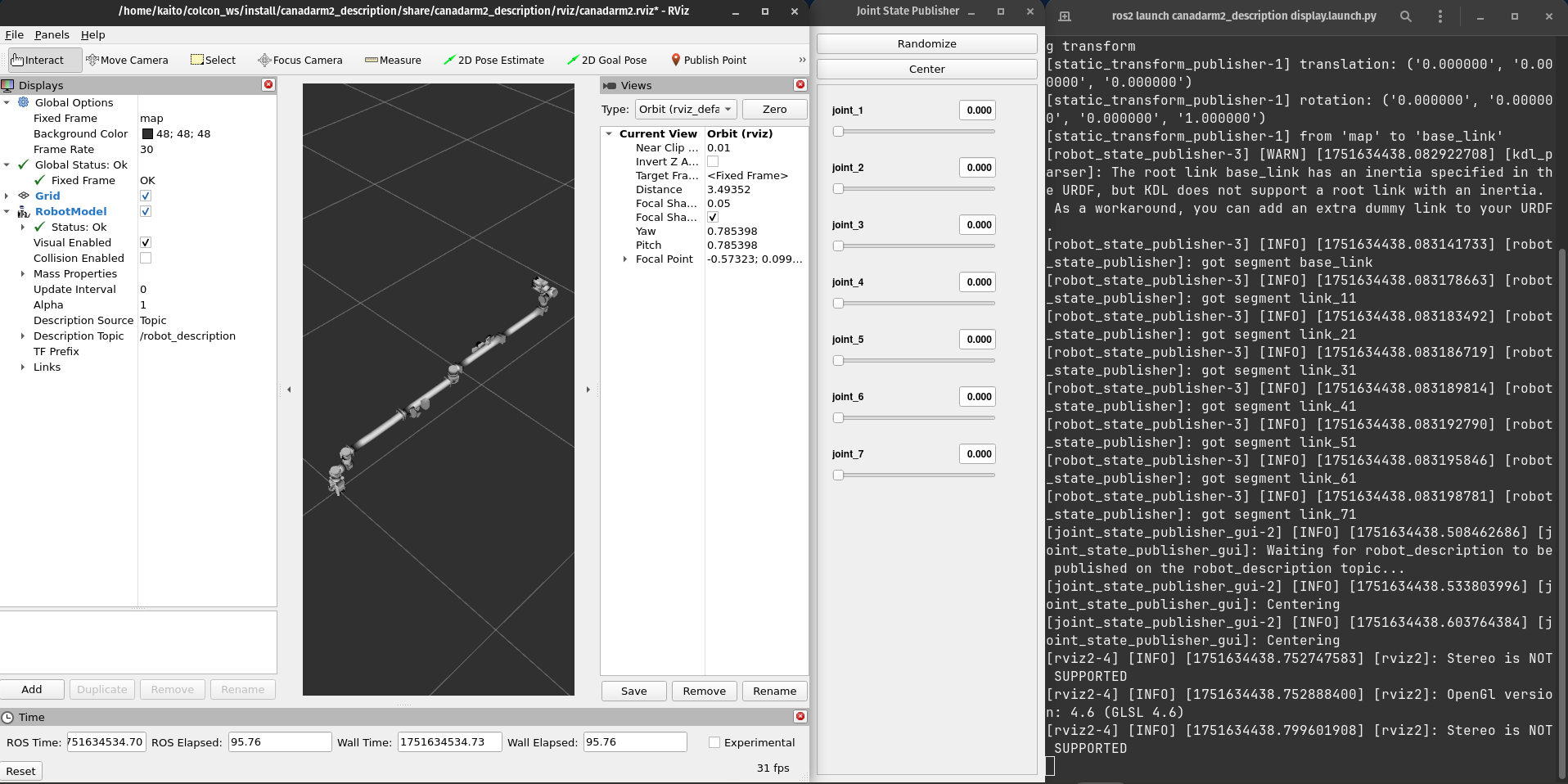
A. Launch in RViz
Test your robot visualization:
ros2 launch canadarm2_description display.launch.py- RViz should open, and you should see your robot model.
- If you set up the joint state publisher GUI, try moving some joints and watch the model update.
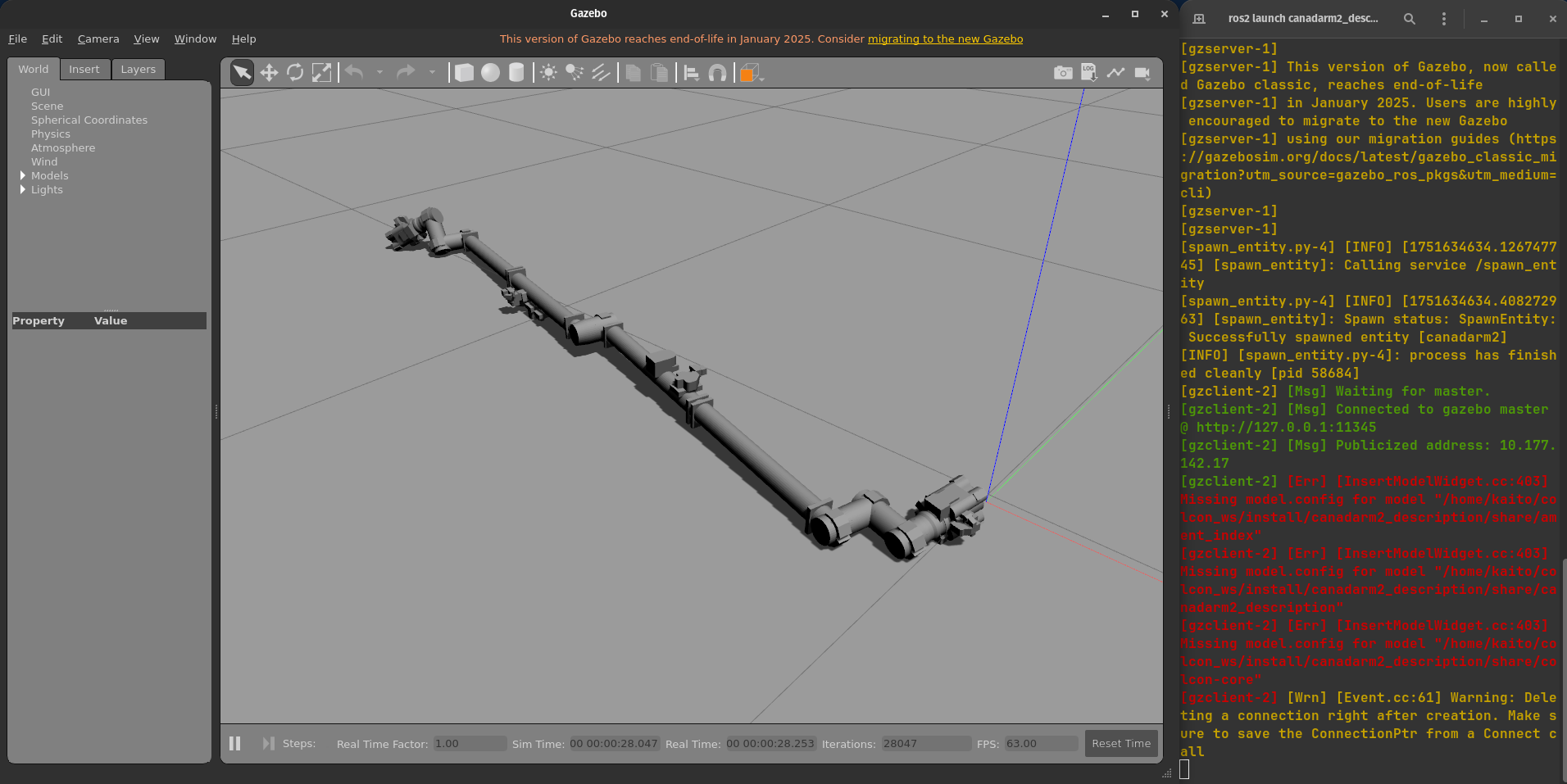
B. Launch in Gazebo
Test your robot in simulation:
ros2 launch canadarm2_description gazebo.launch.py
- Gazebo should start, and your robot should appear in the simulated world.
Happy Simulating :D
Troubleshooting:
Missing Dependencies:
Humble:
sudo apt install ros-humble-joint-state-publisher ros-humble-joint-state-publisher-gui ros-humble-robot-state-publisher ros-humble-rviz2 ros-humble-gazebo-ros -yJazzy:
sudo apt install ros-jazzy-joint-state-publisher ros-jazzy-joint-state-publisher-gui ros-jazzy-robot-state-publisher ros-jazzy-rviz2 ros-jazzy-ros-gz