
Moonlight Settings for the Best Remote Desktop Experience
With great resolution and refresh rate comes great bandwidth control
Ok, hear me out!, If I'm at home, connected to my trusty Wi-Fi (When it Works), I probably never need to use an RDP solution, cuz I'm right next to the machine
But when I'm outside, I'm not in my network, and am probably using my Mobile Data or the on premises Wi-Fi , which is honestly not up-to the one you have at home and you are Probably loosing out on the Processing Power wise as well, as most Phones, Laptops and Tablets do not have the same amount of processing power as Desktop/Workstation
Now Theoretically, A default setup of Sunshine and Moonlight is ideal, but here are a few things that made my life even easier, especially when you intend to use it for more than just Remote Gaming.
Lets get Nerdy for a Sec...
A Remote Desktop is essentially a Real Time Video.
A Video is essentially a bunch of Pictures overlapping each other over a set amount of time, often in milliseconds.
A Picture in its most basic forms is a 2x2 Matrix of cells that carry 3 distinct color channels for Red, Blue and Green respectively,
So a 1080p image, would have 1920 x 1080= 2,073,600 cells (pixels)
Hence, a Video 120 frames would have 120 x 2,073,600 = 248,832,000 cells (pixels)
1 picture in most cases is attributed to a Frame
Now the Refresh Rate is what accounts for the smoothness of the Video. Most Mainstream phones and Laptops refresh anywhere between 60 - 120 fps. (Yes I know there are higher ones out there...I acknowledge your existence PCMR folks)
So a 1080p display at 120Hz refresh rate would be processing 248,832,000 pixels/sec
A 1440p display at 120Hz would be processing 1560 x 1440 x 120 = 269,568,000 pixels/sec
And 4K display at 120Hz would be processing 3840 x 2160 x 120 = 995,328,000 pixels/sec
So Plotting it Out, my not so scientific brain can clearly see that the graph progresses non-linearly, more like exponentially to some extent.
TL;DR
Higher the number of Pixels to process/sec higher the bandwidth required to stream across the network or in this case, the Internet.
Where the Changes Happen
- Open
Moonlight - Open
Settings
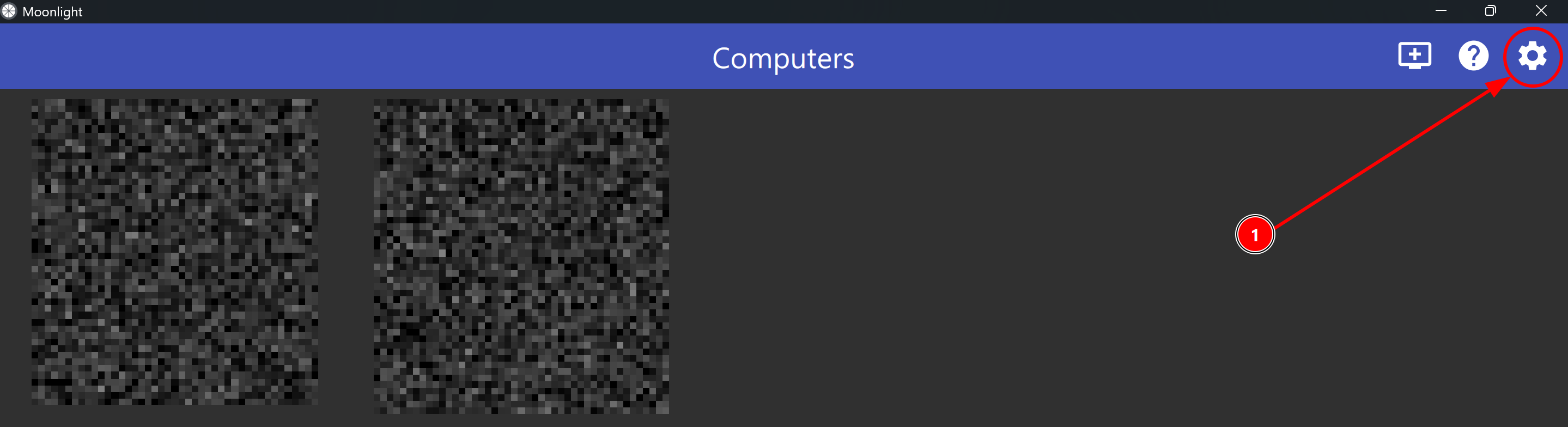
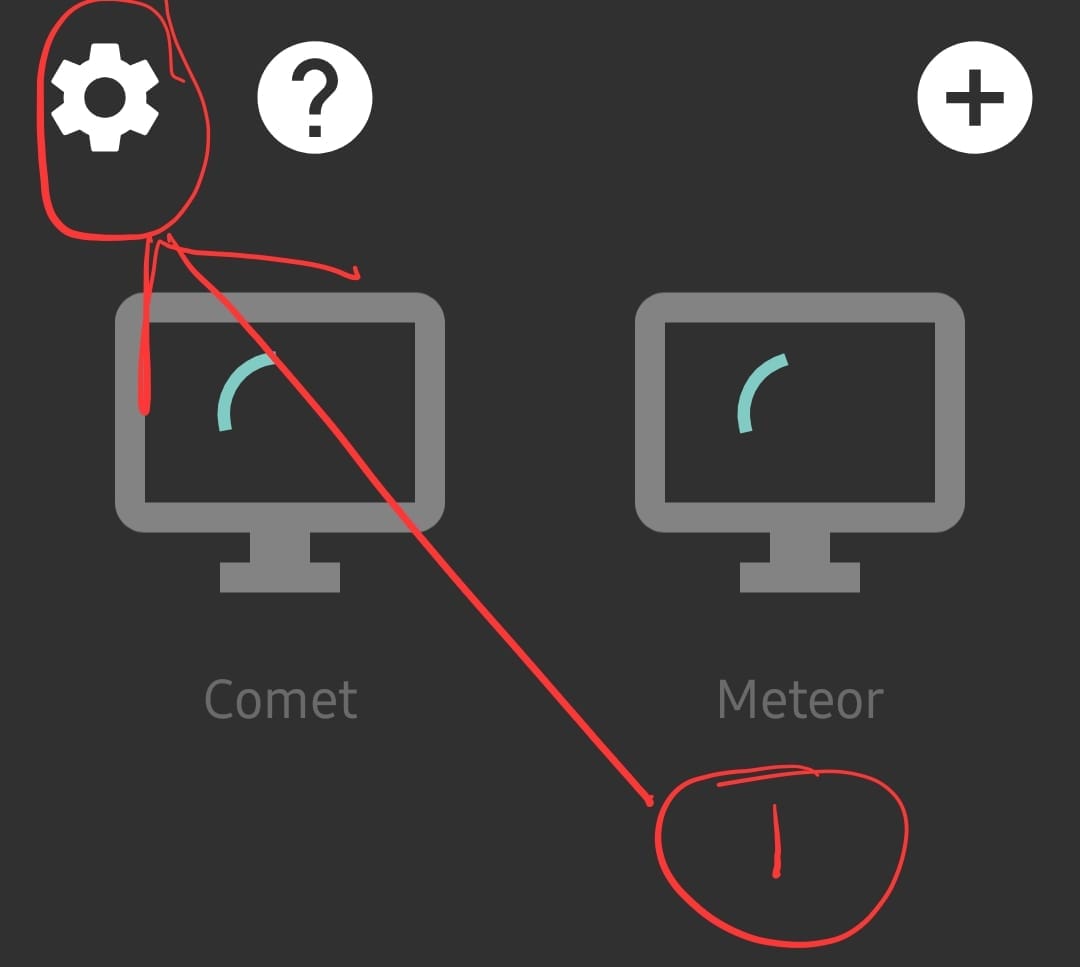
What we are Changing
MAKE SURE THAT THE SETTINGS ARE AS IDENTICAL AS POSSIBLE FOR BOTH THE REMOTE AND LOCAL MACHINES
Resolution
Your Sleeper PC at home, is probably rocking a 4K resolution monitor or even higher (5K,8K,etc). Your client when on-the-go is probably your phone, or a laptop, with specs that are a mere shadow of what the remote PC is capable of.
So set the resolution to what your phone can do, my base Galaxy S25 does a bit over 1080p, and the nearest supported resolution is 1080p...So 1080p is the way to go
Your Devices should be able drop to even lower resolutions like 720p, I would only get to this point if I'm actually in a place with some horrible signal.
TL;DR
Resolution = 1080p
Emergency mode = 720p
Refresh Rate
As the nerdy me just tried to explain, this is the smoothness factor, My laptop and phone do hit 120Hz, so Ideally I go 120Hz,
But when I get some amount of choppiness of lag in the stream, I don't mind dropping the refresh rate to 60Hz.
And in super emergency modes, I go for 30Hz.
Some Moonlight extras:
Optimize the Stream for Remote Desktop
This is a simple setting in the Moonlight Settings, just enable it. Its self-explanatory
Linux Desktop:
Although the Moonlight Client is available in virtually any modern device with a screen and is completely opensource, When I installed the .AppImage version it in Rocky Linux 9, I faced an issue. The Client would get into full screen and hang until I reboot the PC.
The Fix !
- Launch the .AppImage from the terminal and not by double clicking the Desktop or App list.
- Use it in a Windowed Mode and then scale it manually to Full-Screen
This is so that in case, the app hangs, You can still kill the process from the terminal, provided you still have access to it.