
Run GUI Apps in Incus Containers
Make the Most of your Containers with some visual flair
Wayland and X11 Only:
This method is mostly for Newer Display Methods like PopOS!/Ubuntu 24.04 and higher.
Prerequisites
The following commands are intended for the Host Machine
id -u                    # val = 1000
id -g                    # val = 1000
ls /tmp/.X11_unix/       # val = X1
echo $DISPLAY            # val = :1
echo $WAYLAND_DISPLAY    # val = wayland-1
echo $XDG_RUNTIME_DIR    # val = /run/user/1000
echo "root:1000:1" | sudo tee -a /etc/subuid /etc/subgid
Create a new Incus Profile for GUI interface:
The following commands are intended for the Host Machine
incus profile create gui_wxConfigure the new Profile:
The following commands are intended for the Host Machine
incus profile edit gui_wx
This should open the profile file in a nano like interface, the final profile should like the following:
config:
  raw.idmap: both 1000 1000
description: GUI container
devices:
  waylandSocket:
    type: proxy
    bind: container
    connect: unix:/run/user/1000/wayland-0
    listen: unix:/mnt/wayland-0
    mode: '0700'
    security.gid: '1000'
    security.uid: '1000'
    gid: '1000'
    uid: '1000'
  mygpu:
    type: gpu
    gid: '1000'
    uid: '1000'
name: gui
used_by: []
Save this file using Ctrl + O and then exit using Ctrl + X
Add the Profile to a Container:
The following commands are intended for the Host Machine
Assuming that you have a container called container0, append the gui profile using:
incus profile add container0 guiValidation
The following commands are intended for the Container
Assuming the user of your Container is ubuntu
Login to the Container:
incus ubuntu container0Install X11 Apps:
sudo apt install x11-apps -yRun Xeyes and XClock
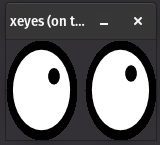
xeyesOutput:
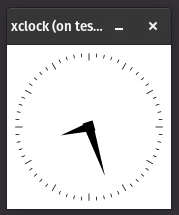
xclockOutput
X11 Only:
This method is mostly for Older Display Methods like PopOS!/Ubuntu 22.04 and lower.
Prerequisites
The following commands are intended for the Host Machine
id -u                    # val = 1000
id -g                    # val = 1000
ls /tmp/.X11_unix/       # val = X1
echo $DISPLAY            # val = :1
Create a new Incus Profile for GUI interface:
The following commands are intended for the Host Machine
incus profile create guiConfigure the new Profile:
The following commands are intended for the Host Machine
incus profile edit gui
This should open the profile file in a nano like interface, the final profile should like the following:
config:
  environment.DISPLAY: :1               # from echo $DISPLAY
  raw.idmap: both 1000 1000             # from id -u and id -g
description: Enables graphical apps use.
devices:
  X1:                                   # from ls /tmp/.X11_unix
    path: /tmp/.X11-unix/X1
    source: /tmp/.X11-unix/X1           # from ls /tmp/.X11_unix
    type: disk
  mygpu:
    type: gpu
name: gui
used_by: []
Save this file using Ctrl + O and then exit using Ctrl + X
Add the Profile to a Container:
The following commands are intended for the Host Machine
Assuming that you have a container called container0, append the gui profile using:
incus profile add container0 guiMinor Fixes (June 2025)
Inside the container:
echo 'DISPLAY=:1' >> /etc/environment
echo 'export DISPLAY=:1' >> /etc/profile.d/display.sh
Validation
The following commands are intended for the Container
Assuming the user of your Container is ubuntu
Login to the Container:
incus ubuntu container0Install X11 Apps:
sudo apt install x11-apps -yRun Xeyes and XClock
xeyesOutput:
xclockOutput