
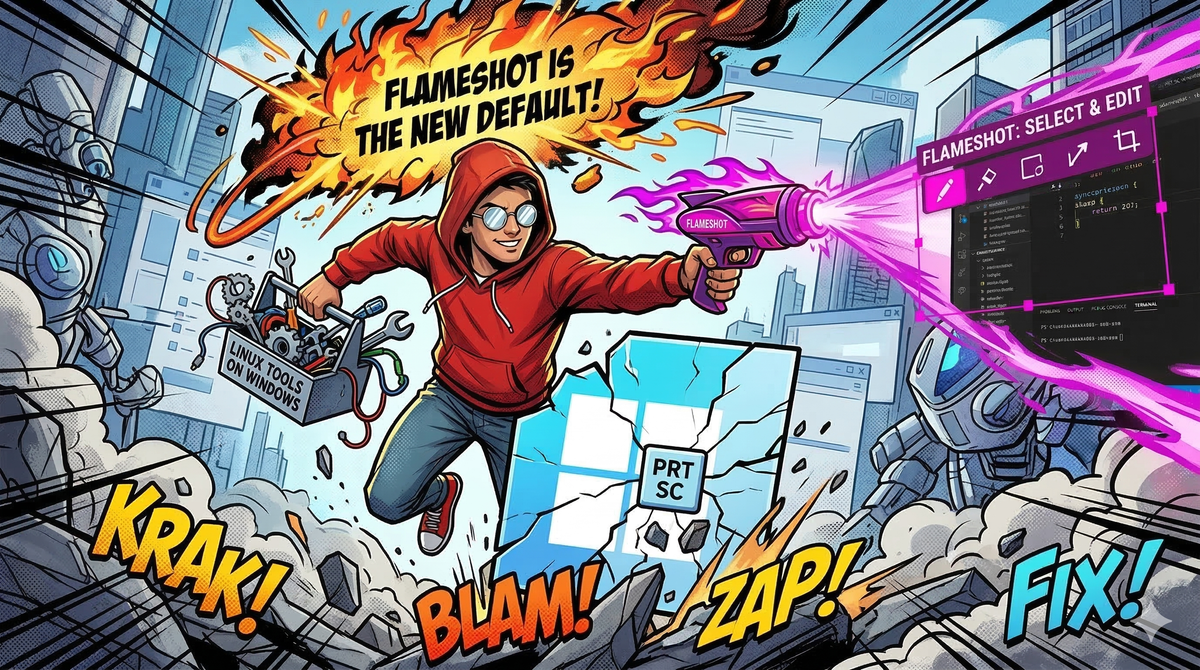
Using Flameshot as the Default Screenshot tool on Windows 11
When Snipping Tool isn't enough and changing the default tool is not so straightforward
The Why
Well actually its whenever I need to write a post on this blog, I often stumble in situations where I need to show a screenshot on my posts, but then the part of the screenshot I actually want to talk about, is hidden in such an obscure way, I'd want to highlight it.
Now Usually Win + Shift + S a.k.a Snipping Tool or Snip & Sketch Come in Handy, but to annotate any of my Screenshots, They open their full blown apps, and believe me. During crunch time, a loading app is not one more problem to quake to.
Also, I'm no creative to get perfect screenshots every single time, I'm also human. But I Really DO NOT want to retake a screenshot, I would love to edit the existing screenshot when I can.
I stumbled upon Flameshot, It robust, quick to download, quick to install, and is great for all the things I just spoke about, but there is only one big glaring issue. I cannot use PrintScreen to launch Flameshot. So here's how I've solved it.
How To
Step 1: Create a Custom Registry
This is to make sure that the Flameshot Install is available as an option for MS:SCREENCLIP
Save the following script anywhere you see fit, I saved mine as flameshot.reg in Desktop
Windows Registry Editor Version 5.00

[HKEY_LOCAL_MACHINE\SOFTWARE\Flameshot\Capabilities\URLAssociations]
"ms-screenclip"="Flameshot"

[HKEY_LOCAL_MACHINE\SOFTWARE\RegisteredApplications]
"Flameshot"="SOFTWARE\\Flameshot\\Capabilities"

[HKEY_CLASSES_ROOT\Flameshot\Shell\Open\command]
@="\"C:\\Program Files\\Flameshot\\bin\\flameshot.exe\" gui"
Step 2: Run and Install The Registry File
Step 3: Setting Flameshot as the Default Screen Shot Tool
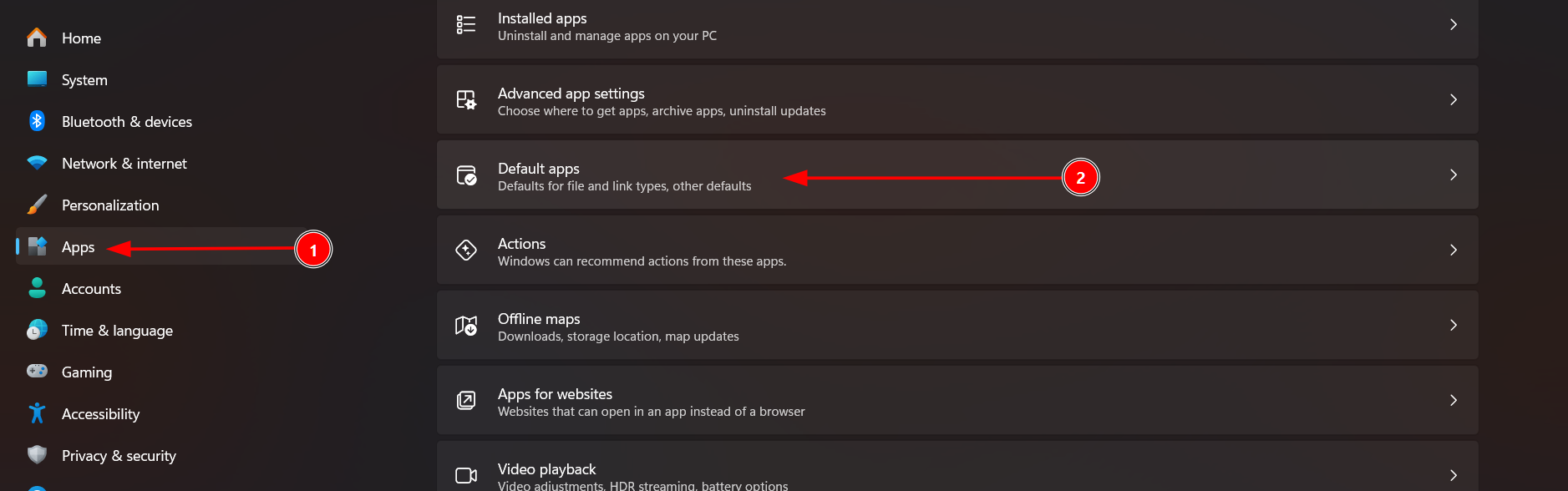
Open Windows Settings --> Apps --> Default Apps
Now Search for MS-SCREENCLIP
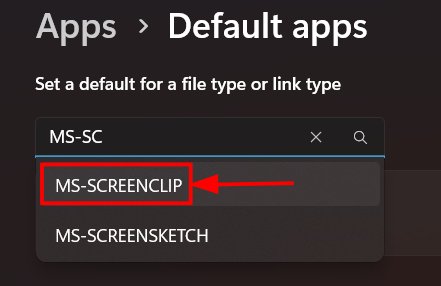
Click on the Available Option and Select Flameshot
Step 4: Launch Flameshot as Startup
Manually launch Flameshot , this should show a little pop-up on the task bar.
Right-click on the icon --> Configuration
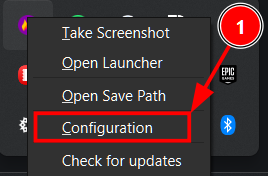
Enable Launch in background at startup
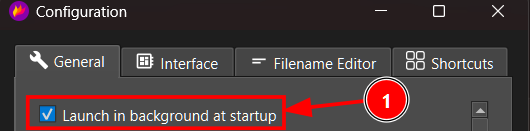
Add that's it.
Now Happy Screen Shotting 🥸